Is your Tesla Model S touchscreen black, frozen or not working? You are not the one with this problem. A lot of people have this issue, with the Media Control Unit in older Tesla Model S cars. It can be really annoying when the screen is blank. Your Tesla Model S is still safe to drive. You just cannot use your music and video player control the temperature or see how fast your Tesla Model S is going.
In this guide we will show you what to do to fix your Tesla Model S. We will start with a way to reset your Tesla Model S using two buttons. Then we will go on to complicated ways to figure out what is wrong, with your Tesla Model S and get it working again.
Why Is My Tesla Screen Black?
The Teslas brain is the MCU. When the MCU has a software problem or the hardware gets tired the screen goes dark. Some common reasons for this are:
- Software Glitches: a background process gets stuck and does not stop.
- Memory Overload: there are many files or browser data saved.
- EMMC Chip Failure: this is common in Model S vehicles where the memory chip wears out.
- Extreme Temperatures: when the car gets too hot it can shut down to protect itself.
To fix the problem you can try these steps:
- The Standard Reset: this is the fix and works most of the time. It does not change any of your cars settings.
- Put your car in Park.
*. Hold both scroll wheels on the steering wheel at the same time.
- Hold them for 10 to 15 seconds.
- The screen will go black for a moment then the Tesla logo will appear.
- Wait for 1 to 2 minutes for the system to start working
- The Deep Reset: if the standard reset does not work you can try this. It makes the cars system restart completely.
- Sit in the drivers seat. Close all the doors.
*. Hold the brake pedal.
- While holding the brake, press and hold both scroll wheels on the steering wheel.
- Keep holding until the Tesla logo appears on the screen.
- The Power Off Cycle: if your screen is slow but still working a little you can try this. It is a way to restart the cars system than a hard reboot.
- Go to Controls, then Safety, Power Off.
- The car will shut down. Do not touch anything for least 3 minutes.
- After 3 minutes press the brake pedal. Open the door to wake the car.
- Check for Updates: Tesla often releases updates to fix screen problems. A black screen might mean that the last update was corrupted or that there is an update available.
- Go to the Software tab on your touchscreen.
- If there is an update connect to a strong Wi-Fi signal and install it right away.
- It is an idea to set your Software Update Preference to Advanced so you get stability fixes sooner.
- Enter Service Mode: if the screen is still not working right you can check for hardware problems yourself before taking the car to a service center.
- Go to Software. Press the Model S text for 3 seconds.
- When the prompt appears, type “service”, into the box.
- Look at the Alerts log. If you see “MCU_Flash_Health” or “Memory Error” it means your hardware needs to be replaced.
When to Schedule a Tesla Service Appointment
If these resets only fix the problem for a while and the screen goes black again after a few days you probably have a problem with the hardware.
eMMC Replacement: Tesla has a warranty program for computers in their cars this is for Model S cars that were built before March 2018.
MCU2 Upgrade: If you have a car getting the new MCU2 computer will fix these slow issues for good and you will also get new things, like Netflix and YouTube on your cars screen.
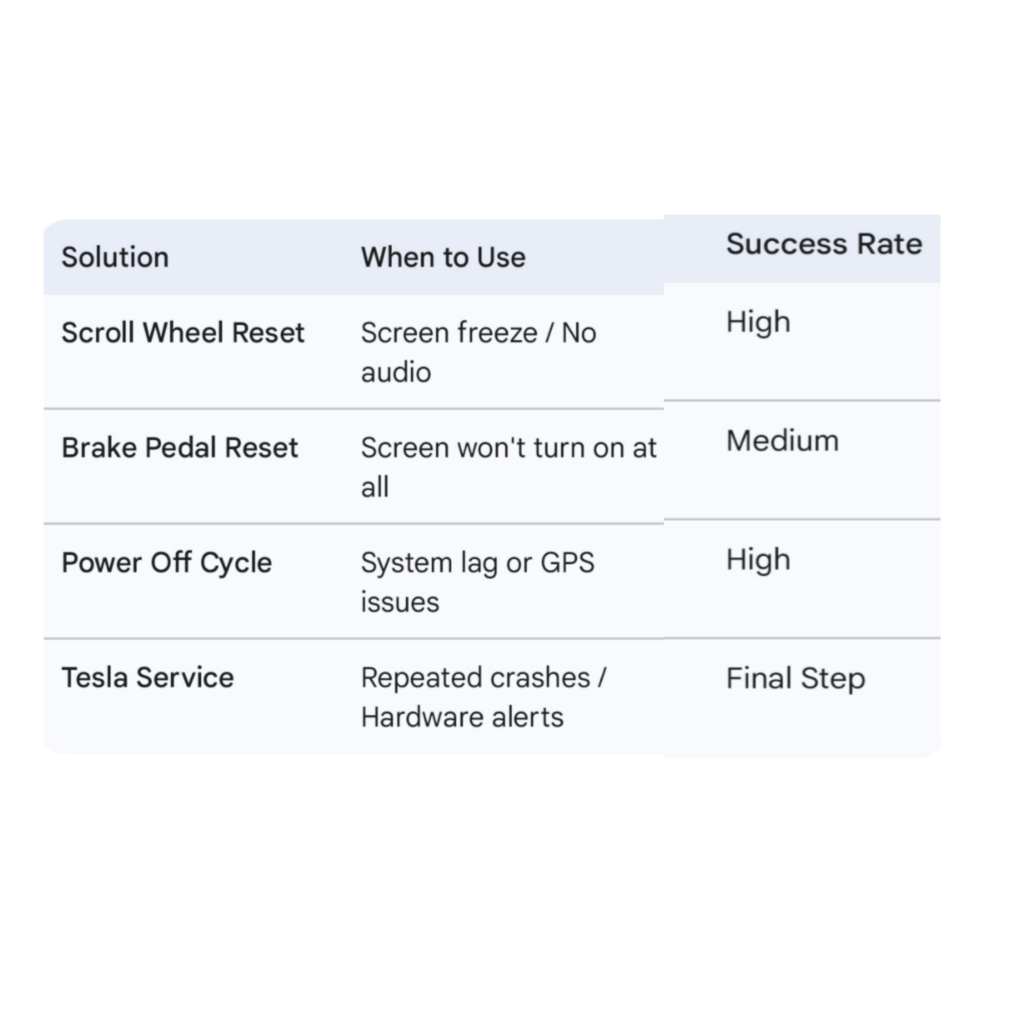
Quick Fix Comparison Table
How do you change the screen on a Tesla Model S?
As is in the users manual, hold down both scroll wheels on the steering wheel until the display goes blank/black. This restarts the display compute system. It does not disable driving, but does quiet all sounds, including turn signal clicking until the computer system restarts. If you are driving down the road, on cruse control or autopilot, those functions will continue to work while the display computer restarts.
How do you turn off the cameras in a Tesla Model S?
Currently there are no official ways to disable the in cabin camera present in Tesla Cars. Though Tesla has assured people privacy but still Tesla may be spying on people.
There are some other ways you can disable or can say pack the camera like you get tools That cover up the camera whenever needed or simply you can put a black tape on it. But currently there’s no such way by which you can disable it.
How do you turn off auto pilot on Tesla Model S (R)?
If you buy a Tesla with Autopilot, there’s no need to turn it off. You won’t be able to turn it on since it won’t be enabled. If somebody else drove the car and used Autopilot, then unless you are the identical size, you won’t be able to use it. As soon as you select a different driver profile or adjust the seat without saving it to that same driver’s profile, the car will assume that you are a different driver and Autopilot won’t work.
Since you didn’t ask how to enable the feature for a given driver, I won’t get into that. But if it did somehow get enabled, perhaps because you asked whoever delivered the car to enable it for you, go to the car settings menu, select the autopilot tab, and turn it off.
If you don’t enable Autopilot, you will still have adaptive cruise control, if you paid for autopilot, and standard cruise control if you didn’t pay for it. If you don’t want to use those, then don’t turn them on. If you turn them on by mistake, tap the brake pedal.
How do you turn off navigation on a Tesla?
What do you mean by turn it off? It doesn’t actually navigate unless you input an address (destination) into it. If you’ve done that and you don’t want it to navigate for you anymore, you just touch “cancel” on the screen, which is at the bottom of the navigation turn-by-turn directions.
if you mean, how do you get rid of the “map” altogether? You don’t. It’s there all the time. Just pull up a different screen in front of it, if it bugs you. But that is like the “background” so to speak. It doesn’t ever go away.
if you mean, turn off the voice to the navigation, you can either go into the settings after you put in an address (it’s in the three little dots of the turn-by-turn section) and the volume control is there specifically for navigation. You can either slide the volume down, or hit the speaker button to mute it altogether and you will still have volume for music and such.