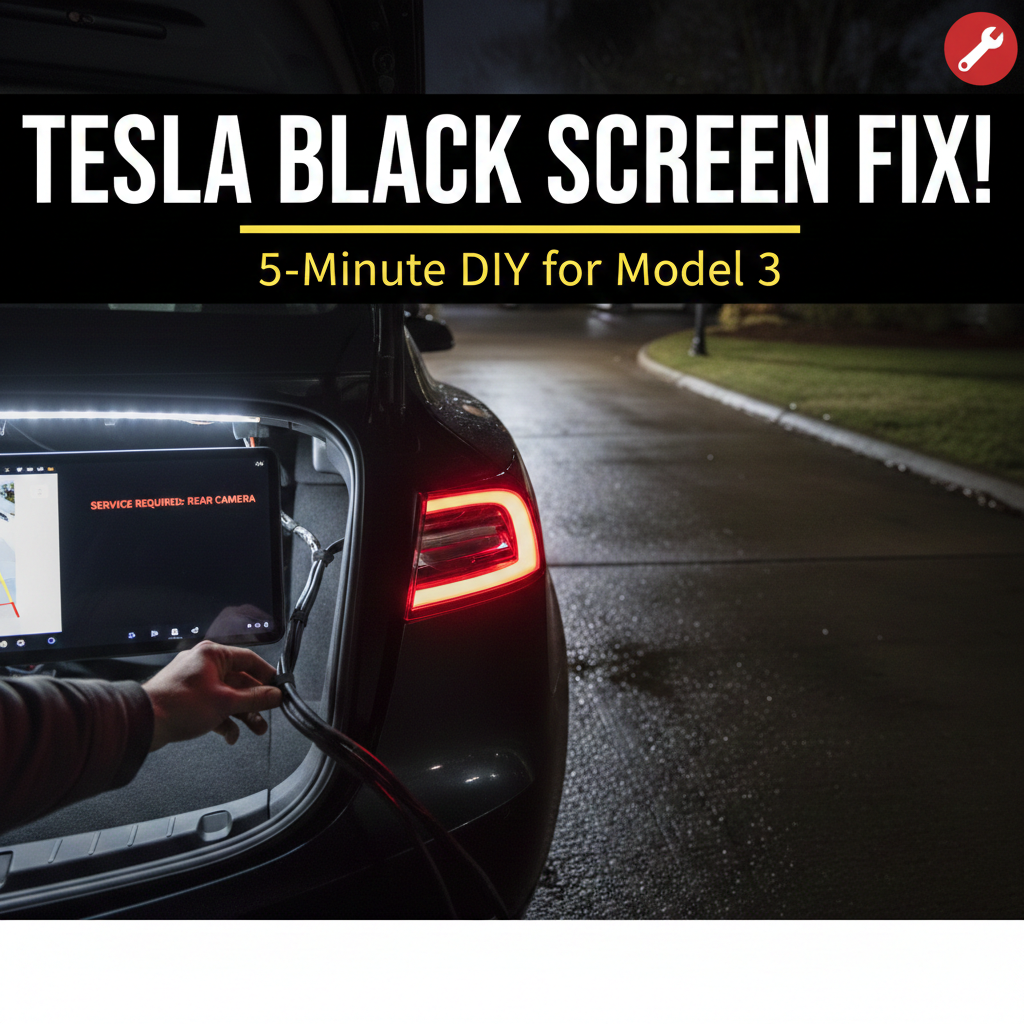
Is your Tesla Model 3 backup camera showing a screen or is it glitching all the time or constantly rebooting? I have been in that situation. As a Tesla Model 3 enthusiast who has dealt with the Tesla Model 3 screen of death during a tight parallel park I know how frustrating and unsafe the Tesla Model 3 backup camera issue can be.
The Tesla Model 3 backup camera issue is very frustrating. While this is one of the reported issues by Tesla Model 3 owners the good news is that after testing various community workarounds for the Tesla Model 3 backup camera I have found that most fixes for the Tesla Model 3 backup camera are simple and can be done right in your driveway without a service appointment, for the Tesla Model 3.
Symptoms We Are Seeing:
- The Black Screen: No image appears on the Tesla Model 3 backup camera when you shift into Reverse.
- Glitchy Feed: The Tesla Model 3 backup camera shows pixelated video or rainbow lines across the screen.
- The Infinite Loop: The Tesla Model 3 camera app crashes and tries to reload every seconds.
Note: While these issues primarily affect 2017–2020 Model 3 units due to a specific cable design, 2023-2025 owners are also reporting software-related blackouts.
Note: These issues mainly affect Model 3 cars made from 2017 to 2020 because of a cable design problem. Owners of 2023-2025 models are also reporting blackouts. They are related to software.
Step 1: Try the 5-Minute Software Reset
Before you try anything with the hardware try a reset using the scroll wheel. I have found that this clears the system cache and fixes 80% of temporary software problems.
- Put your car in Park.
- Hold down both scroll wheels on the steering wheel at the time for about 10 seconds.
- Wait for the screen to go black. The Tesla logo will appear soon.
Tip: If the problem persists try a Deep Sleep. Lock the car. Leave it for 30 minutes without using the Tesla app. This makes the computer fully power down.
Step 2: Check for Software Updates
Tesla is always fixing bugs that cause camera stability issues.
- Open the Tesla app. Go to Software.
- Check if there is an update. Some recent updates, like V12 have fixed camera lag.
Advice: Always update your software using a Wi-Fi connection, not a mobile hotspot to avoid problems.
Step 3: Check the Trunk Harness
If software fixes do not work you likely have a hardware problem—an issue in early Model 3 cars.
- The problem is with the cable inside the trunk lids harness. It can get. Frayed when you open and close the trunk.
- Test it: Open the trunk and find the rubber harness on the passenger side. Gently move the harness while a friend watches the screen. If the image flickers the wire is broken.
Warning: Do not try to fix the harness yourself unless you are trained. This can affect your rearview safety.
Step 4: Is Your Car Under Recall?
Do not pay for a repair that Tesla will fix for free.
- If you have a Model 3 made from 2017 to 2020 there is a recall (NHTSA ID: 21V00D000) for the trunk harness. Tesla will replace it for free.
- If you have a Model 3 made from 2023 to 2025 there is a recall for a computer memory issue that affects the camera.
- Check if your car is eligible, by entering your VIN on the Tesla Recall Portal.
Is it true that Tesla Model 3 has many software issues? If so what are the most annoying issues?
I’ve had a Model 3 since November 2018.
I fully expected the car to have bugs. The software is quite ambitious. We are beta testing a car and a car company. There will be issues.
I had an issue where the screen occasionally would not come on immediately on entry to the car. It would take maybe 30 seconds and then reboot. The car was functional, but no screen for that initial period. It would happen maybe a couple times a day – most of the time it worked properly.
I contacted Tesla. They did remote diagnostics and looked at the logs and their internal knowledge base. They told me it was a problem with a driver for one of the components and they were awaiting an update from the supplier.
The issue continued for a couple of months. I would check in, they’d run the remote diagnostics and said again, firmware update needed. I got a little impatient, talked to a tech again (via email) and the tech escalated to Tesla engineering. The next day I got a firmware update and the problem has been fixed ever since. I was impressed.
The backup rear camera occasionally is black for a second before showing the rear view. I’ve seen on the Tesla forums that this occurs to others, too. And I fully expect it’ll soon be fixed in a firmware update.
I also had the screen go weird while I was driving. It was like the horizontal signal on a TV wasn’t synched. I parked when I got to my destination and rebooted the screen manually (press and hold both steering wheel buttons while pressing the brake). The problem hasn’t happened again.
I’ve been pleasantly surprised at how few issues I’ve experienced and that Tesla has done a good job fixing.
Over the air updates are fantastic. No trips to the dealer needed to do an update.
PS. I’d like to add a few things after I’ve thought about this more. This stuff relates to the software that drives the car, versus managing the driver’s environment via the screen or other driver controls (on the steering wheel). Very impressive.
Let’s start with the drivetrain software. The car drives great and a big part of that is the software that controls the motors and brake regeneration. I’ve driven in heavy snow and slush this past winter, on the stock all weather tires, and was very impressed with how the all wheel drive software worked — better than my Audi Q5 especially on icy and slushy roads.
With software updates I’ve gotten more range and more power as Tesla gains more knowledge on how to better optimize its drivetrain software. For free.
Look at the range Tesla gets from its battery and motors, and compare to the far less range that the Audi e-tron gets from a bigger battery, or what the Jaguar i-Pace gets. Tesla is far ahead in its drivetrain software technology. And I’ve not had any bugs whatsoever with it.
Another area of advanced software is the whole range of capabilities relating to autopilot, starting with traffic aware cruise control (TACC) and all the way to navigation on autopilot and beyond with full self driving. I rarely used cruise control in my ICE vehicles. But TACC works extremely well, managing the car’s speed based on traffic. It works extremely well on the freeway, smoothly (for the most part) maintaining speed, speeding up, slowing down, or whatever as necessary. Even in city traffic or stop and go, it will stop if the car ahead stops and go again in a “normal” manner when traffic starts again. It’s much smoother than I would have expected. It doesn’t re-start for red lights or stop signs (yet). Auto steer also works suprisingly well, especially on the highway. I’m using it more and more. I remain with hands on the wheel and vigilant, but trusting it more and impressed. It’s not perfect and will get better. The next step is Navigation on Autopilot, where you enter an address and the car will do most of the driving on the highway from freeway on ramp to exit, including lane changes. Autopark, well, I’m not that impressed with it in its current state. It’s really slow and I don’t think it does a great job. That’s an area for improvement. Full safe driving? Elon talks about it a lot, and I’ll believe it when I see it. They are making progress but we’ll see…
Summary Checklist
Action Detail Est. Time Soft Reset Hold both scroll wheels 2 Minutes Deep Sleep Let car sit locked (no App) 30 Minutes Harness Wiggle Inspect trunk wiring 1 Minute VIN Check Look for “Service Recalls” 2 Minutes